
Nowadays internet connectivity has become one of the things that we need the most: the freedom to access the Internet from anywhere within the signal range; the access to the Internet on any devices to download music, movies and apps or surf the web; the freedom from the hassle of installing wired connections in different rooms. Free WiFi Hotspot is just what you need to create WiFi hotspot on Windows with just a click of button!
This utility also provides the standard WPA2 for password protection to keep freeloaders out. If you’re not a fan of WiFi, Free WiFi Hotspot is just the right choice to share your WiFi connection with other devices and other people. It will automatically make a WiFi hotspot on your computer and you can set the hotspot name (SSID) and the password. Your families, friends, roommates or any other one who have the password can easily join your network sharing, and you can blacklist anyone as you like.
method 1. Use Free WiFi Hotspot to Create WiFi Hotspot on Windows
Free WiFi Hotspot is just what you need to create your own WiFi with just a click of button! This utility also provides the standard WPA2 for password protection to keep freeloaders out.
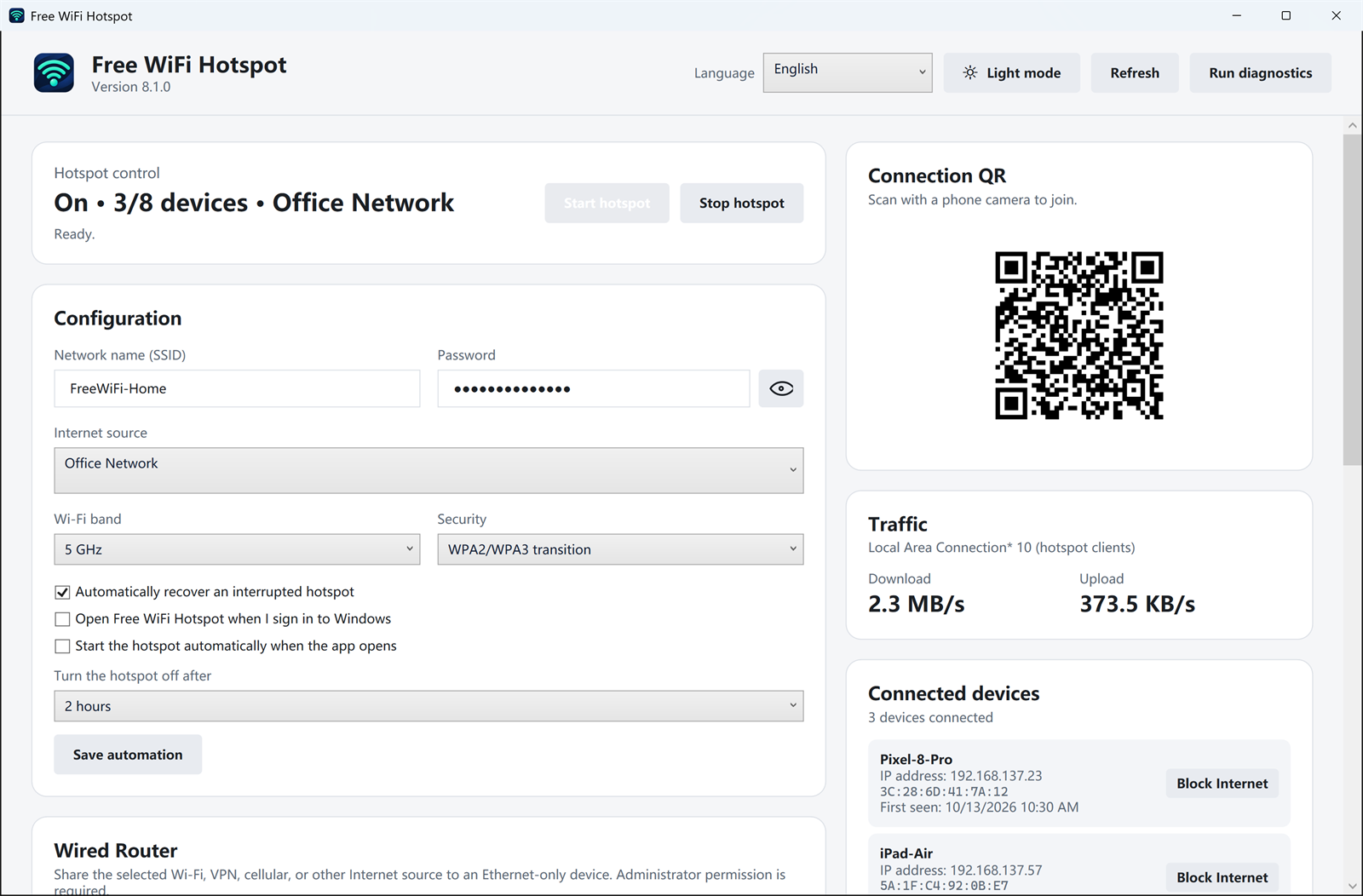
Step 1. Set the network name and password
To create WiFi hotspot on Windows, launch Free WiFi Hotspot first. In Configuration, enter the network name (SSID) and a password of at least 8 characters. You can also choose 5 GHz or 2.4 GHz, and WPA2 or WPA3.
Step 2. Choose the internet source
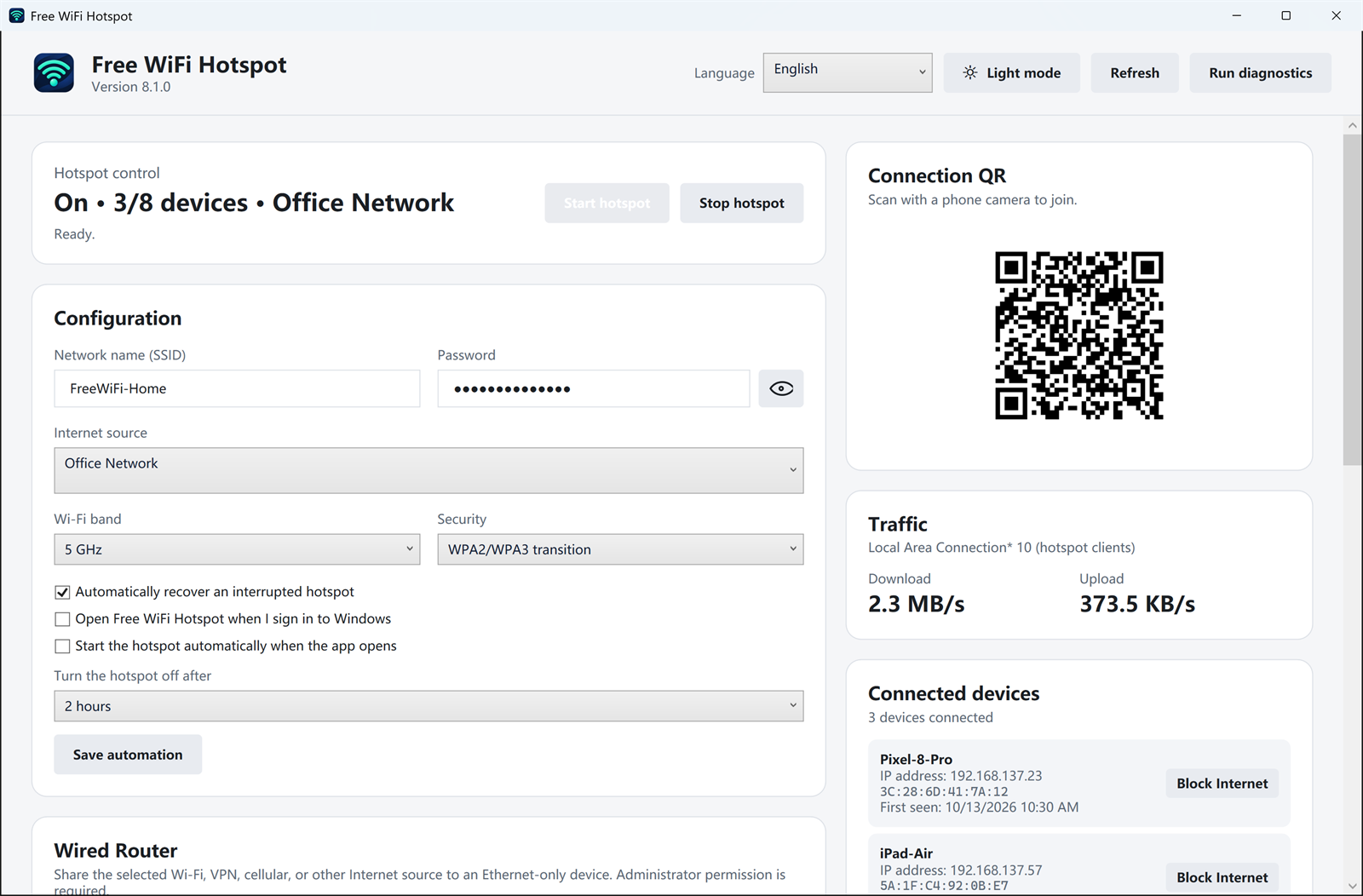
Open Internet source and choose the connection that already works on this PC, such as Ethernet, Wi-Fi, or USB tethering.
Step 3. Start the hotspot
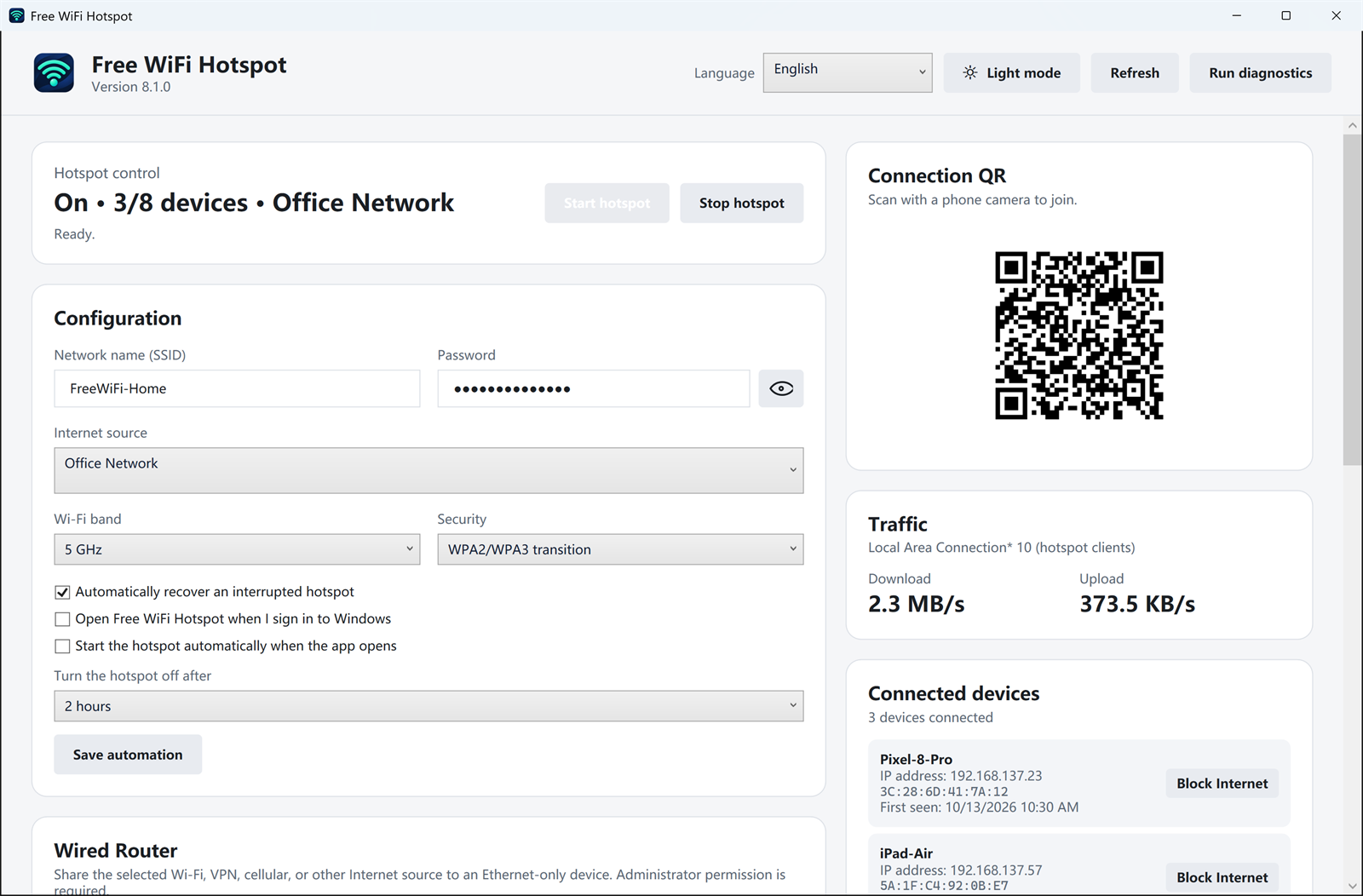
Click Start hotspot. The phone can join from its Wi-Fi list or by scanning the QR code on the screen. Live speed and the connected-device list appear on the same dashboard.
Windows 11 note: the steps below for the old Windows wizard and Command Prompt are not the current setup. On Windows 11 or Windows 10, use Free WiFi Hotspot 8.1.0 as described above.
METHOD 2. Use the Graphical Wizard to Create WiFi Hotspot on Windows
Windows XP has a handy feature named Graphical Wizard which can make your computer act like a WiFi hotspot by creating an AD HOC network. You can use your Windows 7 laptop or desktop as a wireless hotspot without software and cmd. Please note that some users may have troubles while trying to enable shared Internet connections but these errors don’t appear quite often. If you use Windows 8 or if you just migrated to Windows 10, then you might have noticed that this can no longer be done.
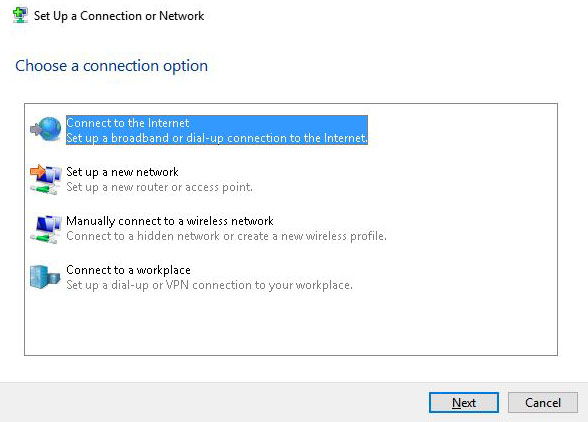
METHOD 3. Use CMD (Command Prompt) to Create WiFi Hotspot on Windows
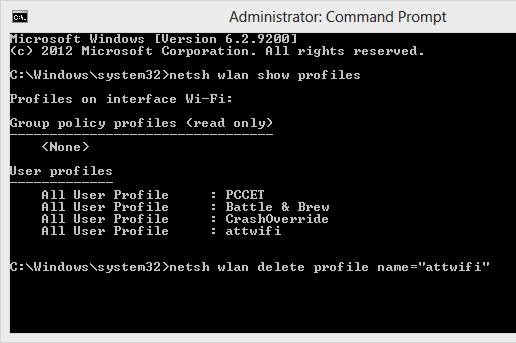
The Command Prompt is quite a handy tool in Windows which can help you with lots of computer and network problems. If there is no graphical wizard in your Windows 7 computer to help turn on WiFi hotspot or the wizard is useless, you can try command prompts to transform your Windows 7 into a hotspot. You’ll need to ensure that your computer has a wired and wireless network connection. It’s kind of difficult, especially for green hands, so be careful when you try it.
DOWNLOAD FREE WIFI HOTSPOT SOFTWARE
Absolutely free. No trials or limitations | Safe with No Malware | Runs on Windows 11 and Windows 10